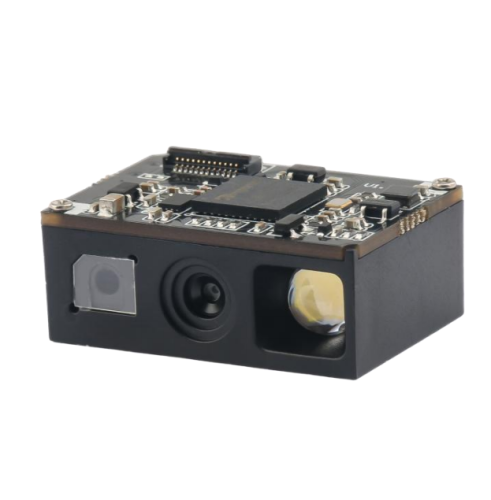
A handheld barcode scanner is used repeatedly every day, often in dusty stockrooms, busy checkout areas and warehouse aisles. Most scanners require little routine service, but simple maintenance can improve read performance, extend accessory life and prevent avoidable downtime.
This guide explains how to clean and maintain a barcode gun, identify common problems and decide when a device needs professional service or replacement.
Maintenance frequency should match the environment and usage. A scanner at a clean office desk may need only occasional cleaning. A scanner exposed to cardboard dust, fingerprints, grease or multi-shift warehouse use should be inspected more often.
A practical schedule may include:
Always follow the model's manual and site safety rules. Disconnect wired equipment or turn off the scanner before cleaning when instructed.
Dust, fingerprints and smears on the scan window can reduce image contrast and create reflections. The scanner may still read large clean labels but become unreliable on small, glossy or damaged codes.
Use a clean, soft microfiber cloth. Remove loose particles gently before wiping so grit does not scratch the window. If the manufacturer permits a cleaning solution, apply a small amount to the cloth—not directly to the scanner. Avoid abrasive cleaners, rough paper and sharp tools.
Inspect the window under good light. Deep scratches, cracks or internal fogging normally require service because external cleaning cannot correct them.
Wipe the handle and trigger to remove dirt that can enter gaps or make the scanner difficult to hold. Pay attention to seams, but do not force liquid into the housing.
For scanners used in healthcare, food service or shared workstations, confirm which disinfectants are approved for the enclosure material. Strong chemicals can discolor plastic, damage seals or weaken the scan window.
For wired scanners, the cable is a common wear item. Check for cuts, crushed sections, exposed conductors, bent plugs and strain near the scanner or host connector. Intermittent movement-related disconnects often indicate cable damage.
If the model has a replaceable cable, use the correct interface and locking method. A cable that looks similar may have different wiring. Route it away from cart wheels, drawer mechanisms and sharp counter edges, and leave enough slack for normal movement without pulling the connector.
Wireless scanner availability depends on battery condition and charging habits. Keep charging contacts clean and dry. A scanner that sits loosely in the cradle may not charge consistently, so confirm the indicator shows a proper connection.
Do not use swollen, cracked, leaking or overheated batteries. Replace them according to the supplier's instructions and local recycling requirements. If several scanners rotate across shifts, label batteries or devices and monitor which units lose runtime unusually quickly.
Store spare batteries at the recommended temperature. Avoid leaving equipment for long periods in hot vehicles, direct sunlight or freezing conditions unless it is designed for them.
A 2.4G scanner may depend on a dedicated USB receiver, while a Bluetooth model relies on pairing with the host. Keep receivers identified so they are not mixed between workstations. Use a short extension cable if a receiver is hidden behind metal equipment and range is poor.
When troubleshooting, confirm the scanner is paired with the intended host, the correct communication mode is selected and no nearby device is receiving the data. For Bluetooth, remove an obsolete pairing only when necessary and follow the documented pairing sequence.
Scanners are often configured with prefixes, suffixes, keyboard country, interface mode and symbology settings. Before resetting a device, record the current configuration or save it with the supplier's utility if available.
A factory reset can solve some configuration problems, but it also removes project-specific settings. After a reset, verify the interface, enabled barcodes and data formatting before returning the scanner to service.
For a wired model, test a known working USB port and inspect the cable connection. Avoid unpowered hubs during diagnosis. If the cable is replaceable, test an approved spare.
For a wireless model, place it in the charger and confirm the charging indicator. Check the battery seating and inspect the contacts. If the battery is damaged or fails to hold charge, replace it rather than repeatedly attempting to start the scanner.
A successful beep usually means the code was decoded, but the host may not be receiving the data. Check the cable or receiver, active application field and interface mode. A USB scanner configured as serial communication will not behave like a keyboard unless the appropriate driver and software are used.
For Bluetooth, confirm the required profile and that the scanner is connected to the correct device. Test in a simple text editor to separate scanner communication from application-specific problems.
Confirm that the symbology is enabled. Then compare code size, contrast, printing quality, surface glare and damage. Small or dense codes may require a closer reading distance or a scanner with suitable resolution.
Clean the scan window and test a known high-quality code. If the good code reads reliably but production labels do not, investigate the labels or select a scanner designed for the difficult application.
Test in a clear area to determine whether shelves, walls or machinery are blocking the signal. Move the receiver away from the back of a metal computer or cabinet. Check battery condition and verify that the correct receiver is paired.
Published range is usually measured under specific conditions. Real buildings can reduce it, so evaluate wireless performance in the actual work area.
For wired scanners, gently moving the cable during a test can reveal an intermittent connection, but stop if conductors are exposed. For wireless scanners, check power-saving settings, battery condition, interference and the distance to the host.
Review system logs or status indicators where available. Repeated failures at the same location may indicate coverage or interference rather than a defective scanner.
Remove a device from service if it has exposed wiring, a swollen battery, excessive heat, liquid inside the housing, a cracked window with sharp edges or structural damage after a severe drop. Do not continue charging a damaged battery.
Professional service may be appropriate for internal damage, repeated rebooting, failed triggers, damaged seals or problems that remain after approved cleaning, cable replacement and configuration checks.
Only if the manufacturer approves the concentration and material compatibility for that model. Apply approved cleaner to a cloth rather than pouring or spraying it onto the device.
Clean it when visibly dirty or when read performance changes. High-use or dusty environments may require scheduled weekly or daily inspection.
Not immediately. First check power, connection, window cleanliness, barcode quality and configuration. Record important settings before a factory reset.
Depending on the model and workflow, useful spares include approved cables, charging cradles, batteries, wireless receivers, stands and one configured replacement scanner.
Regular window cleaning, cable inspection, battery care and configuration records solve many common barcode-gun problems. Combine routine maintenance with realistic spare planning and remove unsafe equipment from service promptly.
Explore WODEMAX scanning and commercial equipment or contact our sales team for barcode-scanner selection, replacement accessories, customization and project support.
 Retail Checkout Counter Layout: A Practical Equipment and Workflow Guide
 Direct Thermal vs Thermal Transfer Printing: Which Should You Choose?
 Android POS vs Windows POS Terminals: Which Platform Fits Your Retail System?
 POS Terminal Ports Explained: USB, COM, LAN, HDMI and Cash Drawer